

What You'll Learn to Fix Today
Even the most advanced humanoid robots can encounter hiccups. This guide is designed to empower you with the knowledge to identify, understand, and resolve the most common issues, saving you time and frustration.
Connectivity Challenges
Diagnose and resolve issues with Wi-Fi, Bluetooth, or USB connections that prevent your robot from communicating.
Movement & Actuator Glitches
Understand why your robot might be moving stiffly, erratically, or not at all, and how to address it.
Sensor Malfunctions
Troubleshoot issues with vision, touch, or proximity sensors that impact your robot's perception of its environment.
Power & Software Hiccups
Address battery drainage, charging problems, and software bugs or firmware update failures.
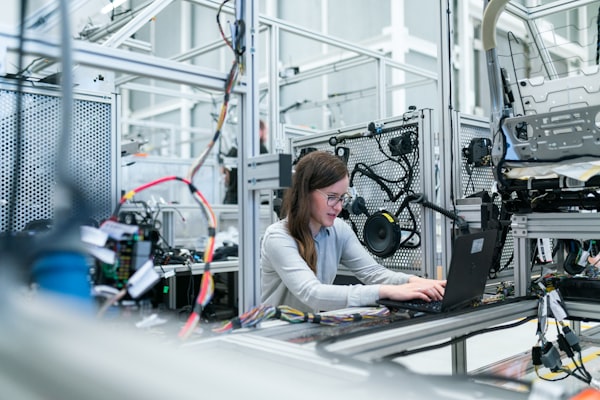
 A careful visual inspection is often the first step in diagnosing robot issues.
Where Do I Start When My Robot Isn't Working?
When your humanoid robot isn't behaving as expected, it's easy to feel overwhelmed. The key is to approach troubleshooting systematically, starting with the simplest checks. Think of it like a doctor performing a basic check-up before ordering complex tests.
Before diving into specific component diagnostics, always perform these initial steps:
Why Can't My Robot Connect? Diagnosing Connectivity Issues
Connectivity is the lifeline of your humanoid robot, enabling it to receive commands, send data, and interact with its control system. When this link breaks, your robot can become unresponsive. Let's pinpoint the problem.
What type of connection issue are you experiencing?
Wi-Fi Troubleshooting Steps
1. Router Check: Ensure your Wi-Fi router is on and broadcasting. Try restarting it. Confirm other devices can connect to the same network.
2. Network Credentials: Double-check the Wi-Fi network name (SSID) and password entered into your robot's configuration. Typos are common!
3. Signal Strength: Is the robot too far from the router? Walls and other electronics can interfere. Try moving the robot closer or using a Wi-Fi extender.
4. IP Address Conflict: In rare cases, another device might have the same IP. Restarting your router usually resolves this by assigning new IPs.
5. Robot's Wi-Fi Module: Check your robot's settings to ensure its Wi-Fi module is enabled and not in airplane mode (if applicable). Refer to your robot's manual for specific instructions on accessing network settings. For more on initial setup, see our guide on Setting Up Your Humanoid Robot.
Bluetooth Troubleshooting Steps
1. Device Visibility: Ensure both your robot and the device you're trying to pair with have Bluetooth enabled and are set to 'discoverable' mode.
2. Proximity: Bluetooth has a limited range, typically up to 10 meters. Keep the devices close during pairing.
3. Forget Device: If previously paired, try 'forgetting' the robot from your device's Bluetooth settings and initiating a fresh pairing process.
4. Interference: Other wireless devices (Wi-Fi, microwaves) can interfere. Try pairing in a less congested area.
5. Robot's Bluetooth Module: Verify the robot's Bluetooth module is functional. Some robots have diagnostic tools or status indicators for this.
USB/Wired Link Troubleshooting Steps
1. Cable Integrity: Inspect the USB cable for any damage (frays, bends). Try a different, known-good USB cable.
2. Port Check: Try a different USB port on your computer. Ensure the port on the robot is clean and free of debris.
3. Driver Installation: For wired connections, your computer often needs specific drivers for the robot. Reinstall or update these drivers.
4. Software Recognition: Ensure the robot's companion software or IDE (e.g., for programming your humanoid) recognizes the connection. Sometimes running the software as administrator helps.
5. Power to Robot: Some USB connections require the robot to be powered on or in a specific mode. Check your robot's manual.
Upgrade your robot's wireless capabilities with enhanced range and stability, reducing common connectivity dropouts.
 Actuators and joints are critical for movement; inspect them for obstructions or damage.
Is Your Robot Moving Oddly? Diagnosing Actuator & Movement Problems
The ability to move is fundamental for a humanoid robot. When movements become jerky, stiff, or completely cease, it often points to issues with the robot's actuators, joints, or the commands being sent to them. Understanding your robot's robot anatomy is crucial here.
Common movement issues include:
Your Movement Diagnostic Checklist
0 of 5 completedEquip yourself with the right tools for delicate actuator adjustments and replacements, ensuring smooth robot operation.
Are Your Robot's Senses Failing? Troubleshooting Sensor Malfunctions
Humanoid robots rely heavily on their sensors to perceive the world, navigate, and interact safely. When a sensor fails, the robot can become 'blind,' 'deaf,' or lose its sense of touch, leading to unpredictable behavior or complete operational failure. For a deeper dive into how these work, explore our guide on How Do Humanoid Robots Sense and Act?
Here are common sensor types and their potential issues:
| Sensor Type | Common Symptoms of Failure | Initial Troubleshooting Steps |
|---|---|---|
| Vision (Cameras) | Blurred images, no image feed, incorrect object recognition. | Clean lens, check cable connections, restart vision software. |
| Proximity/Distance | Bumping into objects, false positives/negatives, erratic distance readings. | Clean sensor surface, check for obstructions, recalibrate sensor. |
| Touch/Force | Robot not detecting contact, applying too much/too little force. | Inspect sensor pad for damage, check wiring, test sensor output in software. |
| IMU (Inertial Measurement Unit) | Robot losing balance, incorrect orientation, jerky movements. | Recalibrate IMU, check for strong magnetic interference, update firmware. |
If your robot consistently bumps into objects despite clear paths, which sensor is most likely malfunctioning?
 Proper battery care is essential for your robot's longevity and performance.
Powering Down? Troubleshooting Battery & Power Issues
A robot without power is just a statue. Power-related issues can range from a robot not turning on at all to unexpected shutdowns or rapid battery drainage. These problems often stem from the battery itself, the charging system, or internal power distribution.
Consider these common scenarios:
- Robot won't turn on: Check the power button, ensure the battery is charged and properly seated, and verify the charger is working.
- Rapid battery drainage: Could be an aging battery, a power-hungry process running in the background, or a short circuit.
- Charging issues: Robot not charging, charging slowly, or charger indicator lights behaving unusually.
Extend your robot's operational time and ensure stable power delivery with a reliable, long-lasting battery featuring integrated safety circuits.
Software Glitches & Firmware Updates: What to Do?
The 'brain' of your humanoid robot is its software and firmware. Just like any computer, these can experience bugs, conflicts, or become outdated, leading to erratic behavior, feature loss, or complete system crashes. Regular maintenance and understanding common software issues are vital.
Here are some frequently asked questions regarding software and firmware troubleshooting:
My robot is unresponsive after a firmware update. What happened?
This can happen if the update was interrupted, the file was corrupted, or the update wasn't compatible. First, try a hard reset (power cycle). If that doesn't work, you may need to perform a factory reset or re-flash the firmware using a recovery mode, often detailed in your robot's advanced manual. Always ensure your robot is fully charged before attempting firmware updates.
My robot keeps crashing or freezing during tasks. Is it software?
Often, yes. This could be due to a memory leak, a bug in the operating system, or a conflict with a recently installed application or script. Try identifying if the crashes occur during a specific task. If so, the issue might be with that particular program. Ensure all software is up-to-date, and consider uninstalling any recently added programs to see if the problem resolves.
How do I know if I need a firmware update?
Manufacturers typically release firmware updates to improve performance, add features, or fix critical bugs. Your robot's companion app or software will usually notify you of available updates. It's good practice to check the manufacturer's support website periodically for release notes and instructions. Always back up your robot's data before performing a major firmware update.
My robot's voice commands aren't working. Is it a software issue?
It could be. First, check the microphone for obstructions or damage. Then, verify the robot's speech recognition software settings. Ensure the correct language is selected and that the microphone input level is adequate. Sometimes, a simple restart of the voice assistant service within the robot's OS can resolve this.
When to Call for Expert Help?
While many issues can be resolved with careful troubleshooting, some problems require specialized knowledge or tools. Knowing when to seek professional assistance can prevent further damage and ensure your robot's longevity.
"A systematic approach to troubleshooting not only fixes the immediate problem but also builds your understanding of your robot's intricate systems. Don't be afraid to get your hands dirty, but know your limits."
— Dr. Evelyn Reed, Lead Robotics Engineer, iBuyRobotics
Preventative Maintenance: Avoiding Future Headaches
The best troubleshooting is proactive prevention. Regular maintenance can significantly reduce the likelihood of encountering common issues, extending your robot's lifespan and ensuring consistent performance.
Ready to Dive Deeper into Humanoid Robotics?
Troubleshooting is just one part of the journey. Continue expanding your knowledge and skills with these related guides:
Setting Up Your Humanoid Robot
Master the initial setup process to ensure a smooth start and avoid common configuration pitfalls.
Programming Your Humanoid
Learn the basics of programming your robot to perform tasks and interact with its environment.
Understanding Robot Anatomy
Gain a deeper understanding of the components that make your robot tick, from joints to sensors.
Further Reading